How to Run Qwen 3 (30B) Locally with Ollama on RTX 3090 — Complete Guide
Step-by-step guide to running Qwen 3 30B MoE model locally on an NVIDIA RTX 3090 (24GB VRAM) using Ollama. Includes performance benchmarks, port forwarding setup, and API authentication with Caddy reverse proxy.
I've been running Qwen 3 30B locally on my RTX 3090 for weeks now — serving it as an API to my web apps, using it for RAG-based biomedical research, and chatting with it daily. Here's everything I learned setting it up.
Why Run LLMs Locally?
- Zero API costs — No per-token billing. I was spending $50+/month on Claude API
- Privacy — My proteomics research data never leaves my network
- No rate limits — As fast as your GPU allows
- Full control — Custom system prompts, fine-tuning, any model you want
My Hardware Setup
| Component | Spec |
|---|---|
| GPU | NVIDIA RTX 3090 (24GB VRAM) |
| Host OS | Windows 11 |
| CPU | AMD Ryzen (32GB RAM) |
| Network | Port-forwarded for remote access |
| VM | Ubuntu 24.04 (VirtualBox) for Docker services |
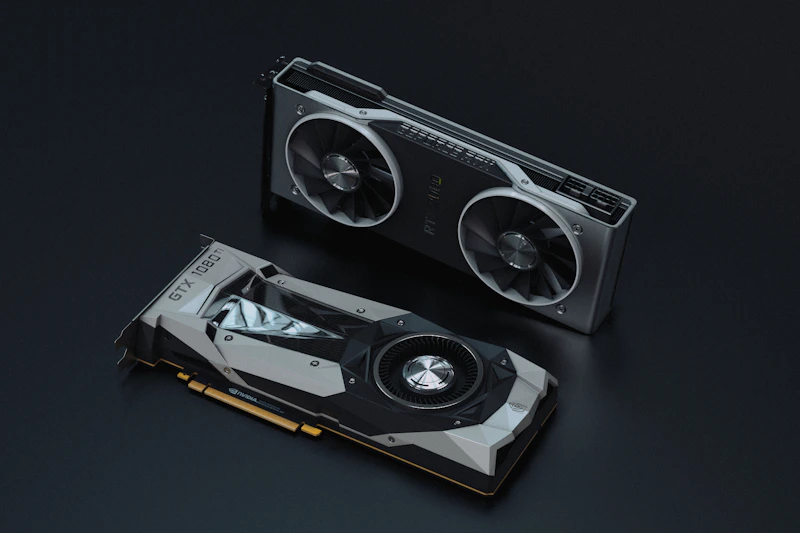
The RTX 3090 is the sweet spot for local LLM inference in 2026 — 24GB VRAM at ~$700 used. The newer RTX 4090 is faster but costs 2x for marginal gains.
Step 1: Install Ollama on Windows
Download from ollama.com and install. It's a single executable.
# Verify installation
ollama --version
# ollama version 0.6.x
Ollama runs as a background service on port 11434 by default.
Step 2: Pull Qwen 3 30B
ollama pull qwen3:30b
This downloads the Qwen 3 30B MoE (Mixture of Experts) model — about 18GB. The key insight: while it's a 30B parameter model, only ~8B parameters are active per token thanks to MoE architecture. This means:
- Fits in 24GB VRAM comfortably
- Inference speed comparable to a dense 8B model
- Quality much closer to a dense 30B model
Other Models I've Tested on 24GB VRAM
| Model | Size | Speed | Quality | Fits 24GB? |
|---|---|---|---|---|
| qwen3:30b (MoE) | 18GB | ★★★★ | ★★★★★ | ✅ Comfortable |
| deepseek-r1:32b | 19GB | ★★★ | ★★★★ | ✅ Tight |
| gemma3:27b | 16GB | ★★★★ | ★★★★ | ✅ Comfortable |
| devstral | 14GB | ★★★★★ | ★★★ | ✅ Easy |
| qwq (32b reasoning) | 19GB | ★★ | ★★★★★ | ✅ Tight |
My recommendation: Start with qwen3:30b. Best balance of speed and quality for 24GB.
Step 3: Test Locally
# Interactive chat
ollama run qwen3:30b

# API call
curl http://localhost:11434/api/generate -d '{
  "model": "qwen3:30b",
  "prompt": "Explain proteomics in one paragraph",
  "stream": false
}'
You should get a response in 2-5 seconds for short prompts.
Step 4: Remote Access via Port Forwarding
I needed to access my Ollama server from:
- My Mac mini (different machine on same network)
- My Vercel-deployed web app (sysofti.com)
- Mobile when away from home
Router Port Forwarding
On your router admin page, forward:
External Port 11434 → Internal IP:Port (your Windows PC's IP:11434)
Now http://your-public-ip:11434 works from anywhere.
⚠️ WARNING: This exposes your Ollama API to the entire internet with ZERO authentication. Anyone can use your GPU. We fix this in the next step.
Step 5: Secure with Caddy + API Key Authentication
This is the part most tutorials skip. Ollama has NO built-in authentication. I solved this with Caddy as a reverse proxy.
Install Caddy on Windows
Download from caddyserver.com. Place caddy.exe somewhere permanent.
Create Caddyfile
:11435 {
    @valid_key header X-API-Key YOUR_SECRET_KEY_HERE

    handle @valid_key {
        reverse_proxy localhost:11434
    }

    handle {
        respond "Unauthorized" 401
    }
}
Start Caddy
caddy run --config Caddyfile
Update Port Forwarding
Change your router to forward:
External Port 11434 → Internal IP:11435 (Caddy port)
Now the flow is:
Internet → Router:11434 → Caddy:11435 (checks API key) → Ollama:11434
Test Authentication
# Without key → 401 Unauthorized
curl http://your-public-ip:11434/api/tags
# Unauthorized

# With key → 200 OK
curl -H "X-API-Key: YOUR_SECRET_KEY_HERE" http://your-public-ip:11434/api/tags
# {"models":[{"name":"qwen3:30b",...}]}
Step 6: Use from Your Applications
Python (FastAPI backend)
import requests

OLLAMA_URL = "http://your-public-ip:11434"
OLLAMA_KEY = "YOUR_SECRET_KEY_HERE"

def query_llm(prompt: str, model: str = "qwen3:30b"):
    response = requests.post(
        f"{OLLAMA_URL}/api/generate",
        headers={"X-API-Key": OLLAMA_KEY},
        json={"model": model, "prompt": prompt, "stream": False}
    )
    return response.json()["response"]
JavaScript/TypeScript (Next.js)
const response = await fetch(`${OLLAMA_URL}/api/chat`, {
  method: 'POST',
  headers: {
    'Content-Type': 'application/json',
    'X-API-Key': process.env.OLLAMA_API_KEY!,
  },
  body: JSON.stringify({
    model: 'qwen3:30b',
    messages: [{ role: 'user', content: prompt }],
    stream: false,
  }),
})
Embeddings for RAG
# Using nomic-embed-text for vector embeddings
ollama pull nomic-embed-text

curl -H "X-API-Key: YOUR_KEY" http://your-ip:11434/api/embeddings -d '{
  "model": "nomic-embed-text",
  "prompt": "BRCA1 protein expression in breast cancer"
}'
# Returns 768-dimensional vector
Performance Benchmarks (RTX 3090)
Real-world numbers from my daily usage:
| Task | Model | Tokens/sec | Latency |
|---|---|---|---|
| Chat (short) | qwen3:30b | ~35 tok/s | 1-2s first token |
| Chat (long context) | qwen3:30b | ~25 tok/s | 3-5s first token |
| Code generation | devstral | ~45 tok/s | 1s first token |
| Embedding (768d) | nomic-embed-text | N/A | ~50ms per text |
| Reasoning | qwq | ~15 tok/s | 5-10s first token |
Common Issues & Solutions
"Out of memory" Error
# Check VRAM usage
nvidia-smi

# If another model is loaded, unload it first
curl http://localhost:11434/api/generate -d '{"model":"qwen3:30b","keep_alive":0}'
Slow First Response
Ollama loads the model into VRAM on first request. Set keep_alive to keep it loaded:
# Keep model loaded for 24 hours
curl http://localhost:11434/api/generate -d '{
  "model": "qwen3:30b",
  "keep_alive": "24h",
  "prompt": "hello"
}'
Caddy Not Starting on Windows
Run as Administrator, or create a Windows Service:
sc.exe create Caddy binPath= "C:\path\to\caddy.exe run --config C:\path\to\Caddyfile"
sc.exe start Caddy
Cost Comparison: Local vs Cloud
| Local (RTX 3090) | Claude API | OpenAI API | |
|---|---|---|---|
| Upfront | ~$700 (used GPU) | $0 | $0 |
| Monthly | ~$15 electricity | $50-200+ | $50-200+ |
| Per token | $0 | $0.003-0.015/1K | $0.002-0.01/1K |
| Break-even | 4-5 months | — | — |
| Privacy | Full | Data sent to cloud | Data sent to cloud |
After 5 months, local inference is essentially free forever.
My Full Stack
For reference, here's my complete self-hosted AI setup:
- LLM: Ollama + qwen3:30b on RTX 3090 (Windows)
- Embeddings: nomic-embed-text (768 dims) via same Ollama
- Auth: Caddy reverse proxy with X-API-Key
- Backend: FastAPI + Python in Docker (Ubuntu VM)
- Frontend: Next.js on Vercel (sysofti.com)
- Database: PostgreSQL (Supabase local) for vectors + results
- RAG: 1200+ biomedical embeddings for semantic search
Total monthly cost: ~$15 (electricity only).
Conclusion
Running Qwen 3 30B locally on an RTX 3090 is genuinely practical in 2026. The MoE architecture makes it fit comfortably in 24GB VRAM while delivering quality that rivals much larger models. Combined with Caddy for authentication and port forwarding for remote access, you get a production-ready LLM API for essentially free.
The setup took me about 2 hours. The monthly savings compared to cloud APIs paid for the GPU in 4 months.
Next up: I'll cover how I built a full RAG pipeline with these local models for biomedical research — semantic search over 1200+ protein/disease embeddings with zero cloud dependency.
Have questions about running LLMs locally? Feel free to reach out. I'm happy to share more details about any part of this setup.
관련 글
The Open-Model Cost Chart Everyone's Sharing Is API Prices. Here's What Self-Hosting Actually Gets You (Measured)
6월 23일 · 7 min read
Local LLMI Added a Verify Layer to My Local RAG to Catch Hallucinations. It Caught Me Being Wrong Twice About My Own Corpus
6월 19일 · 10 min read
Local LLMI Built a Hallucination Gate for My Own Writing. The Bigger Local Model Didn't Catch More
8월 10일 · 10 min read
Local LLMWhat Actually Runs Well on a GTX 1080 Ti in 2026 (Measured)
6월 12일 · 4 min read